
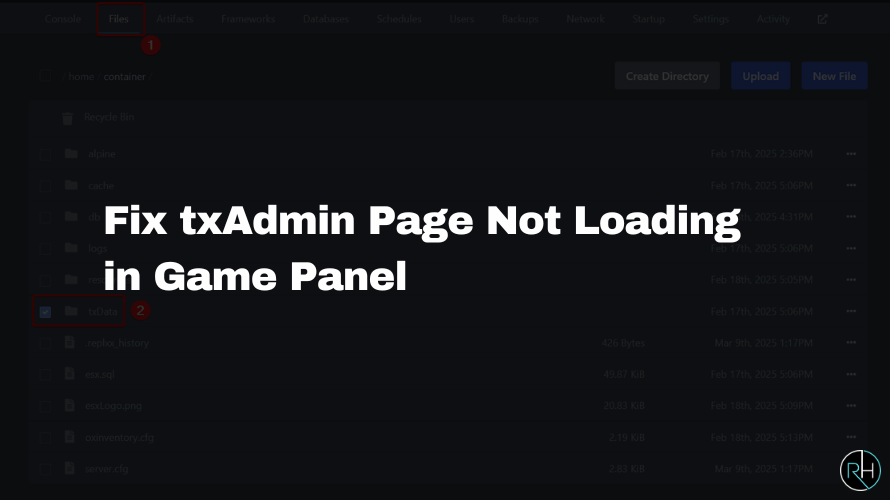
If your txAdmin page isn’t loading through your FiveM game panel, the problem may be related to the port assigned to txAdmin.
On hosting panels that use separate allocations for server traffic and txAdmin, txAdmin needs an available port that is correctly assigned in your server configuration.
This guide walks you through the basic steps to check the port allocation and fix the issue.
How to Fix txAdmin Page Not Loading
Step 1: Log In to Your Game Panel
Start by logging in to your game hosting panel.
Open your FiveM server and access its management dashboard.
Once you’re inside the server, look for the Network section.
Step 2: Check Your Port Allocations
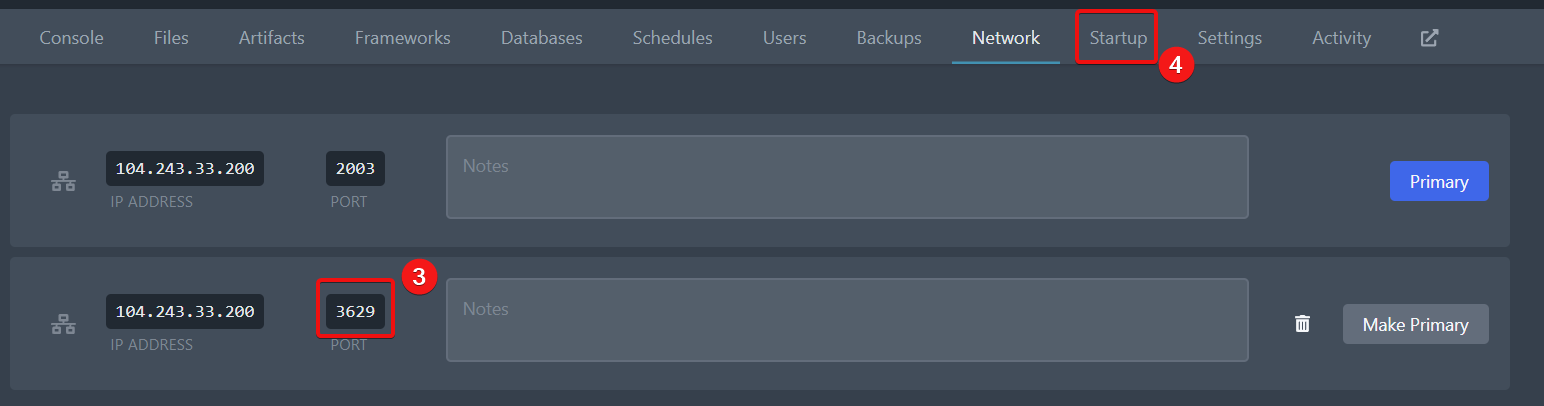
Open the Network tab and check how many allocations are assigned to your server.
If you already have a separate allocation available for txAdmin, you can move to the next step.
If you only have one allocation and your hosting setup requires another port for txAdmin, use the panel’s Create Allocation option to add an available port.
Note: The exact button name or location can vary depending on your hosting panel version.

Step 3: Copy the Secondary Port
After creating the additional allocation, identify the port that isn’t marked as your Primary allocation.
Copy that port number.
You’ll use it as the txAdmin port in the next step.
Step 4: Set the txAdmin Port
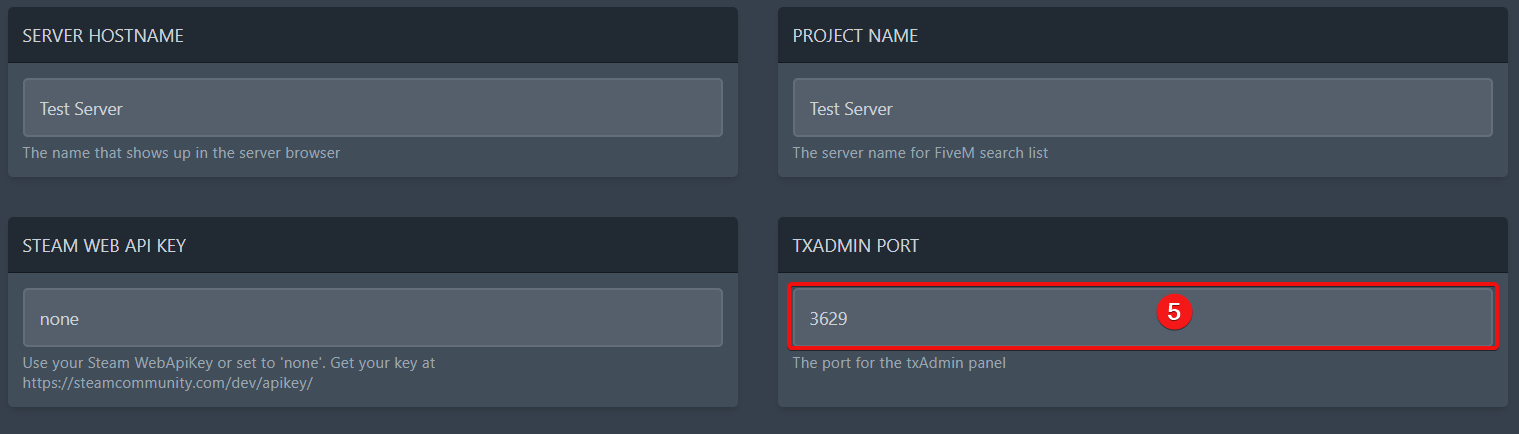
Open the Startup section of your server panel.
Look for the TXADMIN PORT setting.
Paste the secondary port number you copied in the previous step.
Make sure you don’t accidentally enter the full IP address or connection address if the field specifically asks for the port number.
Step 5: Restart Your FiveM Server
After saving the txAdmin port:
- Stop the server if it is currently running.
- Start or restart the server.
- Wait for the server to finish starting.
- Open txAdmin again using the connection option provided by your hosting panel.
If the port was the cause of the problem, txAdmin should now be accessible.
txAdmin Still Isn’t Loading?
If the page still doesn’t open after assigning the port, check the following:
Check the txAdmin Port
Make sure the port entered in the TXADMIN PORT field matches the secondary allocation assigned to your server.
Check Whether the Port Is Available
Make sure the allocation hasn’t been removed, changed, or assigned incorrectly.
Restart the Server
A configuration change may not take effect until the server has been restarted.
Check the Server Console
Look for txAdmin-related errors or messages in your server console. These can provide more information about why the service isn’t starting correctly.
Contact Your Hosting Provider
If you’ve confirmed the allocation and configuration but txAdmin still doesn’t load, your hosting provider may need to check the server-side configuration.
Why Does txAdmin Need a Port?
txAdmin runs as a web-based management interface, so it needs a network port through which you can access the dashboard.
Your FiveM server’s main connection port and txAdmin’s port can be separate depending on your hosting configuration.
That’s why adding and correctly assigning a second allocation can resolve txAdmin access problems on some hosting panels.
Need FiveM Hosting With txAdmin?
If you’re setting up a new FiveM server and want a hosting environment with server management tools, FiveM Server Hosting from Revive Hosting includes txAdmin access along with features such as NVMe Gen4 storage, Ryzen processors, DDoS protection, and different plan sizes.
Choosing the right hosting setup can also make server management easier when you’re running frameworks, scripts, and custom resources.
Final Thoughts
If your txAdmin page isn’t loading, start by checking the port allocation assigned to your server.
The basic process is:
Check Network → create an additional allocation if required → copy the secondary port → enter it in TXADMIN PORT → restart the server.
If the problem continues, check the server console and verify that the allocation and txAdmin configuration are correct before contacting your hosting provider.
Frequently Asked Questions
Why is my txAdmin page not loading?
A missing or incorrectly configured txAdmin port can prevent the page from loading. Check your server’s network allocations and the TXADMIN PORT setting first.
Does txAdmin need a separate port?
Depending on your hosting configuration, txAdmin may require a separate available port from the primary server allocation.
How do I change the txAdmin port?
In a compatible hosting panel, assign an available port and enter its port number in the TXADMIN PORT startup setting. Restart the server after saving the change.
Do I need to restart FiveM after changing the txAdmin port?
Yes. Restarting the server ensures the updated configuration is loaded.
What should I do if txAdmin still doesn’t load?
Check the port allocation, TXADMIN PORT value, server console, and server status. If everything appears correct, contact your hosting provider for further assistance.